Sign-in
Every app comes with sign-in for its users from day one. People create an account with email and password or a magic link, sign in with Google in one click, protect their account with a second factor and join their team from an invite. You decide who may sign up. You write no auth code and store no passwords.
What your users get
| Method | What it gives your users |
|---|---|
| Email and password | Sign up and sign in. Passwords are hashed and stored by the platform |
| Email verification and reset | A link that confirms the address, and a one-time reset link (same answer whether or not the account exists) |
| Magic link | Sign in from a link in their inbox, no password |
| One click, with no Google Cloud setup | |
| GitHub | One click, with your own GitHub OAuth app |
| Two-factor codes | Authenticator-app codes plus single-use backup codes |
| Organisations | Teams with invites, so a customer can bring colleagues |
Turn on Sign in with Google
- Add one line to the contract (or ask your agent to):
"auth": { "google": true } - Apply. The sign-in screen now shows Continue with Google.
- Publish. It works on your
apps.appbricx.comlink straight away.
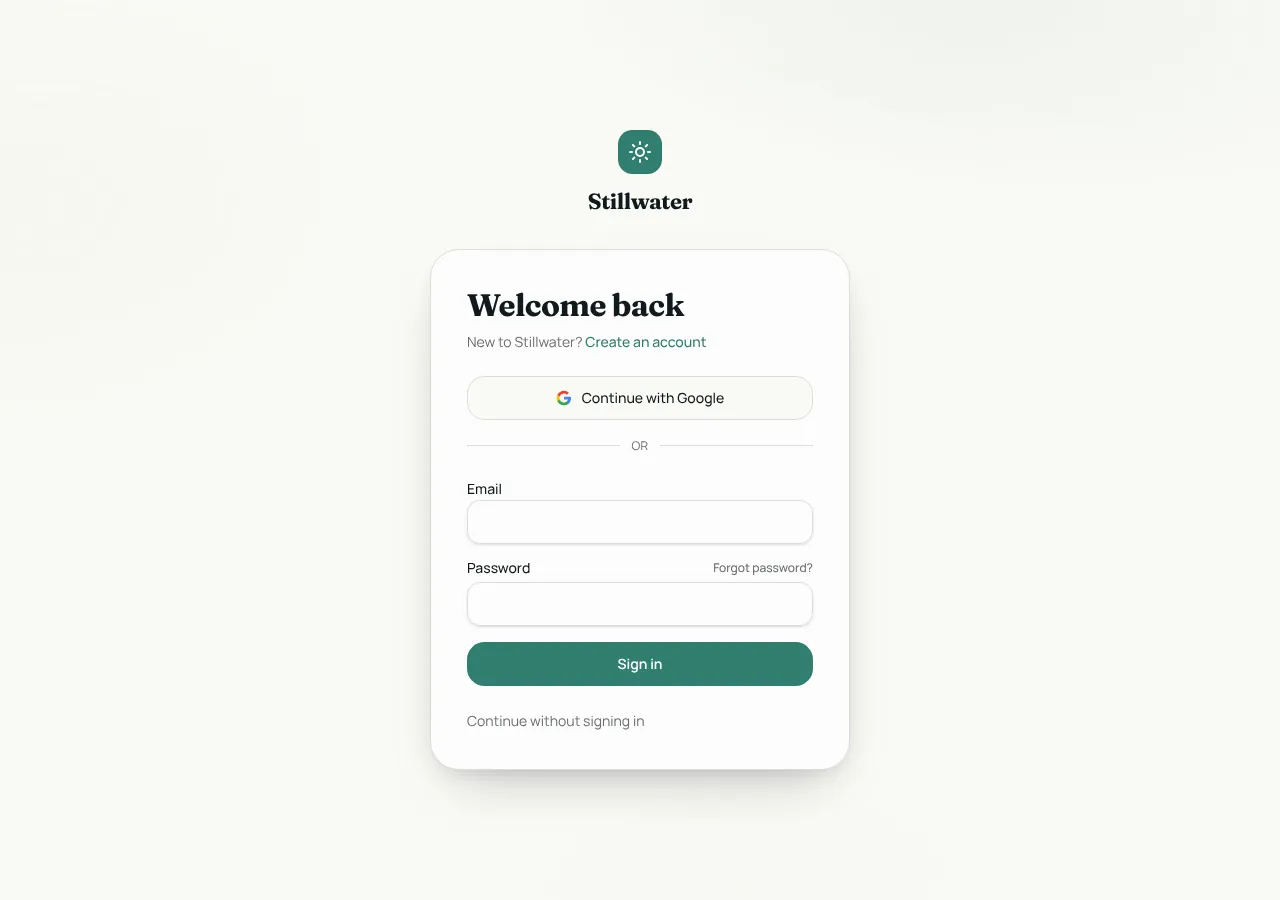
Other ways to switch it:
- From an agent: the
sign_in_providersMCP tool with{ "provider": "google", "enabled": true }. - Over HTTP:
POST /api/dev/v1/projects/:id/sign-inwith the same body. - In the editor: Project settings, Sign-in.
Use your own Google client
Google's consent screen shows Appbricx as the app asking. For your own name there, create a Google OAuth client of type "Web application", add this redirect URI for each host your users sign in on, and paste the client ID and secret into Project settings, Sign-in:
https://<your-app-host>/__appbricx/auth/oauth/google/callbackGitHub works the same way, with /__appbricx/auth/oauth/github/callback.
On your own sign-in screen
A custom sign-in screen gets the providers that are switched on:
{app.auth.providers.map((p) => (
  <button key={p.name} onClick={() => void app.auth.startProvider(p.name)}>
    Continue with {p.label}
  </button>
))}
Two-factor codes
Users can add an authenticator app to their account. After their password they enter a six-digit code, and they get backup codes so a lost phone doesn't lock them out.
Organisations and invites
For business apps, users belong to organisations and an admin invites colleagues by email. Admins can list accounts, change a role and disable an account under Backend, Users. Inside the app, a page with the TeamAdmin block lets a staff role invite people with a role.
Who may sign up
| Policy | Use it when |
|---|---|
open | Anyone can create an account (consumer apps, free trials) |
invite_only | Only invited people join (internal tools, client portals) |
disabled | No new accounts, for example during a private beta |
Set it in Backend, Auth. Development and production keep their own setting, and the policy covers every method, Google included.
Gotchas
- Each custom domain needs its own redirect URI when you use your own Google or GitHub client. The platform Google client needs nothing.
- Keep the "Email" and "Password" labels and a "Sign in" button on a custom screen: verify and screenshots sign in through them.
- A new Google user becomes your first consumer persona (a member, a guest), like an email sign-up.
- Sessions use an HttpOnly cookie on your app's own host, so page scripts never see the token.