File uploader
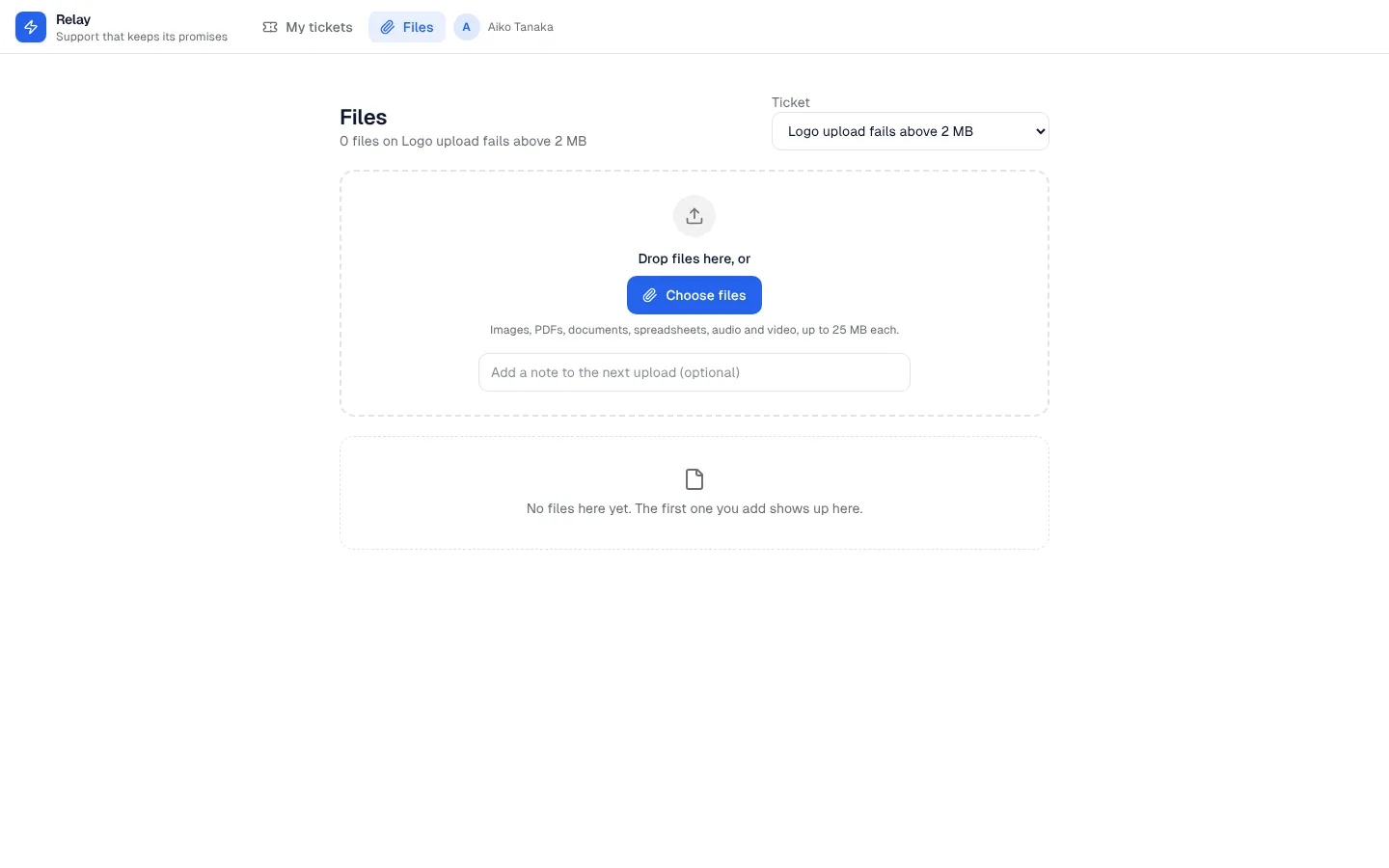
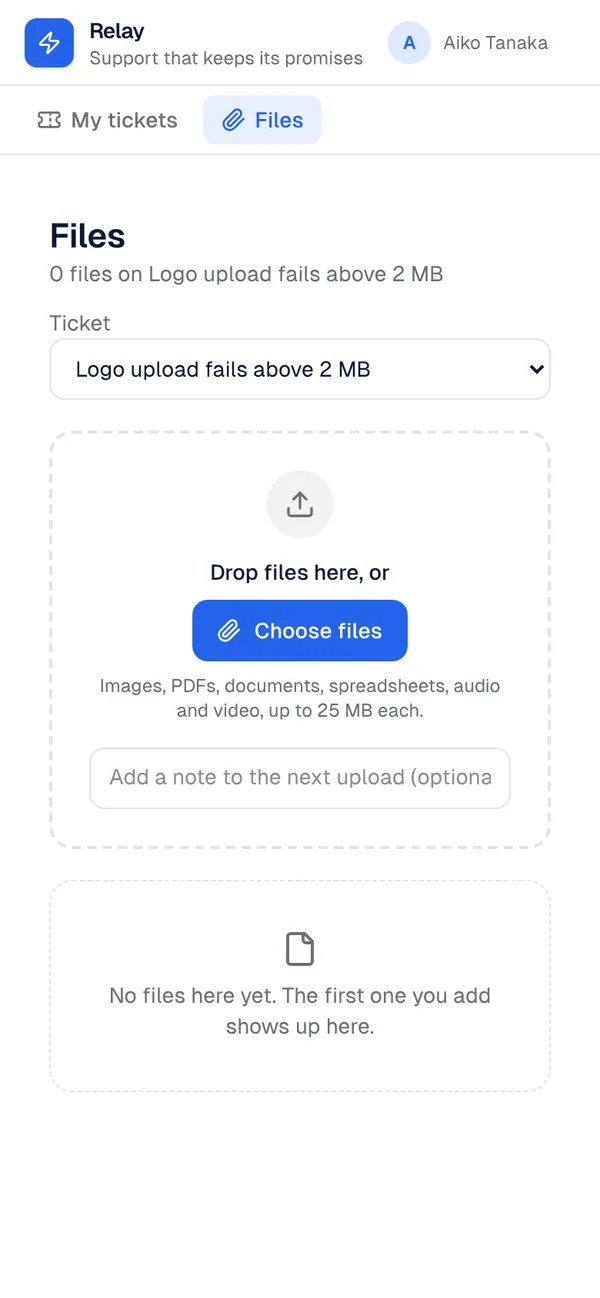
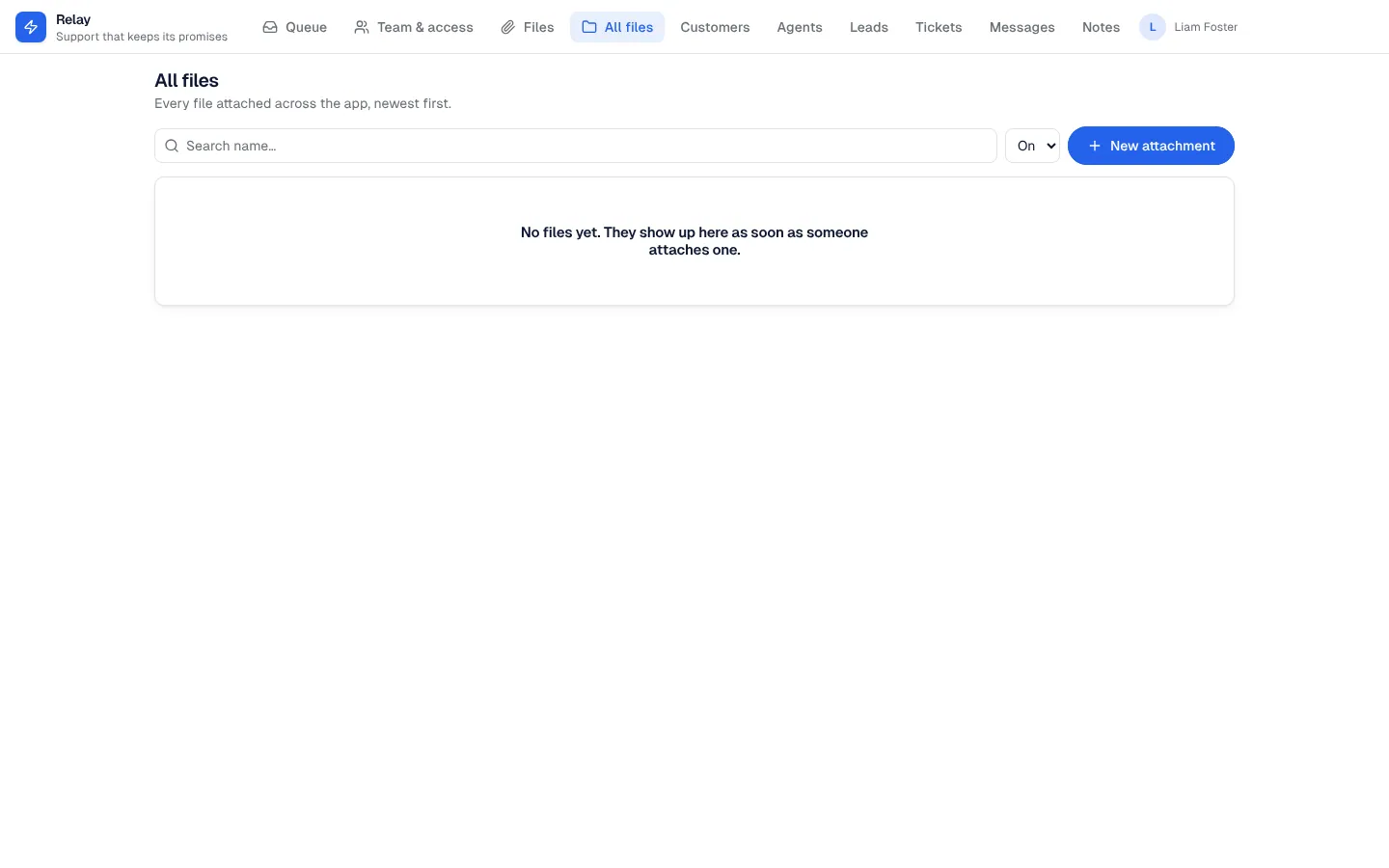
Adds an attachment table linked to one of your tables (tickets, jobs, orders, applications) and a FileAttachments component: drop files or choose them, add a note, and see each file with a thumbnail, its size and when it was added. Files go to your project's own storage through the platform, and anyone who can open the record can open its files, while people who can't see the record can't fetch them either. Customers add and remove files on their own records; staff see everything and get an All files list. Rules refuse files on records you can't open and keep a file on the record it was added to.
What it adds to your app
Table attachment: the record, the file, its name, type, size and a note. FileAttachments component with a Files page for every role. An All files list for staff.
Tables
attachmentsubject_id, file, name, mime, size_bytes, note, organisation_id
Pages
/filesFiles (@everyone)/files-adminAll files (@staff)
Components
FileAttachmentsFiles attached to one ‹attach_to›: drop or choose files to upload, image thumbnails, notes, download, and delete where allowed
Rules on every write
attachmentChoose a file to attach.attachmentYou can only attach files to something you can open.attachmentAn attachment stays on the record it was added to.attachmentAn attachment belongs to the organisation of what it's on.
Set it up
It merges into the contract of an app you already have. Nothing is overwritten: a name you already use is refused until you pass a prefix.
- Pick the project
Use the button above, or ask your coding agent with the Appbricx MCP server connected (quickstart).
- Point it at your tables and roles
Leave out the ones with defaults; a wrong one is refused with the options your app has.
Param What it is Example attach_toThe table whose records get files. ticketorg_fieldOptional: the ref on that table naming its organisation (from organisations-and-teams). Files then belong to that organisation and only its members see them. Optional. organisation_id - Preview, then apply to dev
A dry run shows the diff and the check report; applying it changes your dev environment only.
- Deploy
When dev looks right, deploy. Production gets a snapshot first, so you can roll back.
Use it with your coding agent
The agent reads the template, runs a dry run, shows you the diff and applies it.
Add the File uploader template (slug "file-uploader") to my Appbricx project. Read it with get_template, run use_template with dry_run first and show me the diff, then apply it. Ask me where it attaches if you can't tell from my contract (attach_to: attach files to; org_field: organisation (optional)).{
"tool": "use_template",
"arguments": {
"slug": "file-uploader",
"project_id": "<your project id>",
"params": {
"attach_to": "ticket",
"org_field": "organisation_id"
},
"dry_run": true
}
}appbricx templates use file-uploader --param attach_to=ticket --param org_field=organisation_id --dry-runGoes well with
Huddle
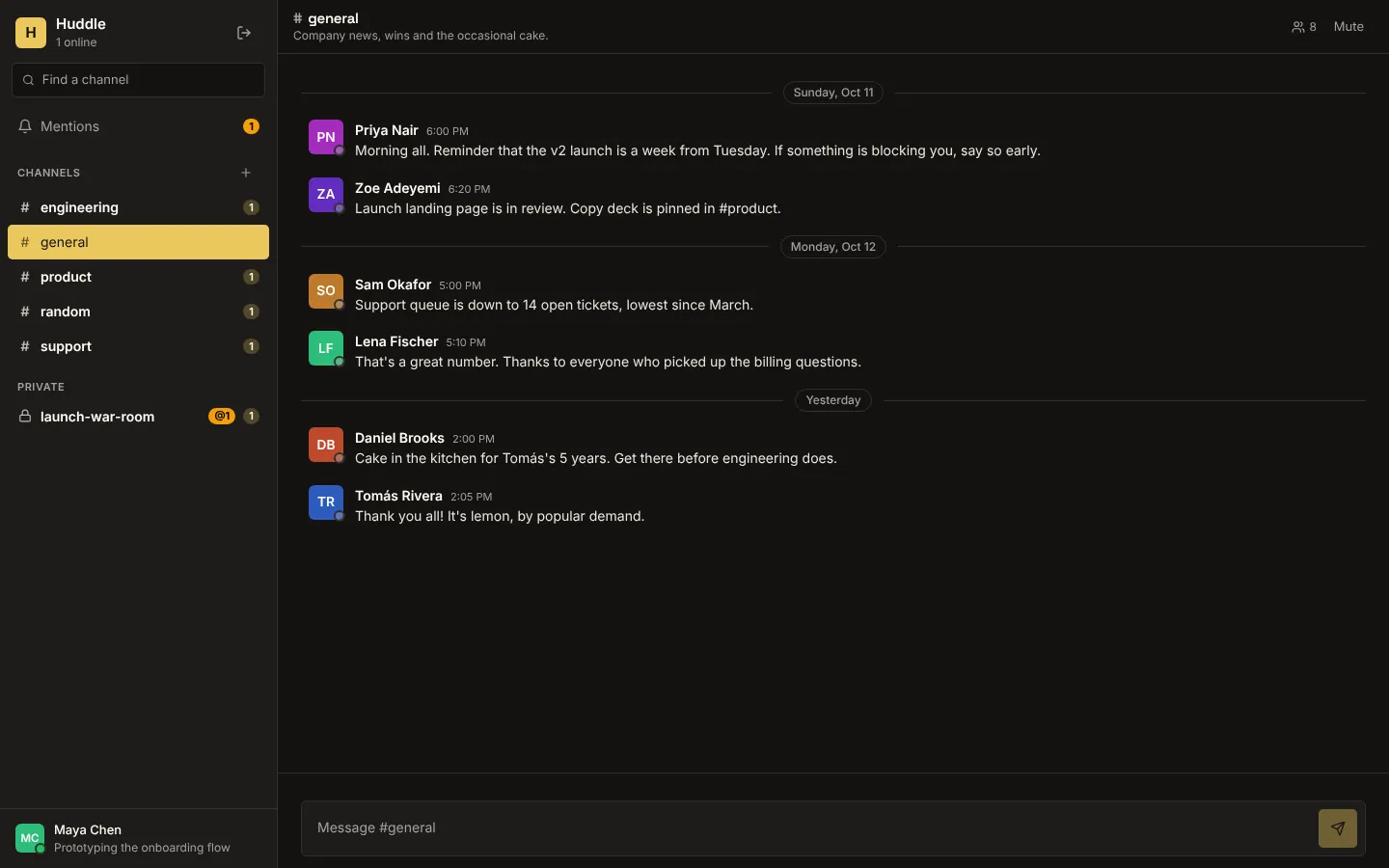
Realtime team chat: public and private channels, live messages, typing indicators, who's online, unread counts and @mentions.
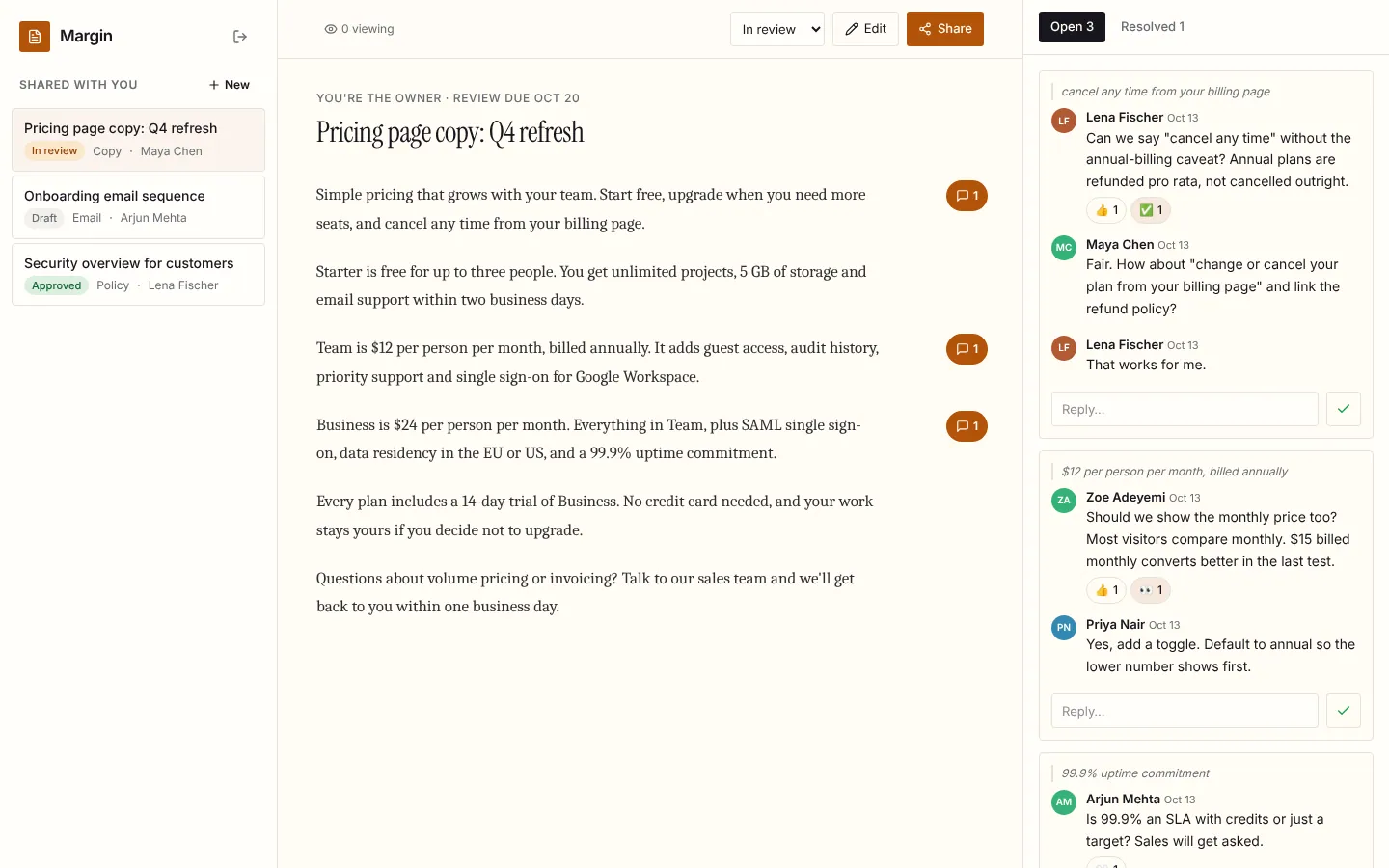
Margin
Live document review: comments in the margin, replies, reactions and resolve, who's viewing, and edits that appear for every reader as they're saved.
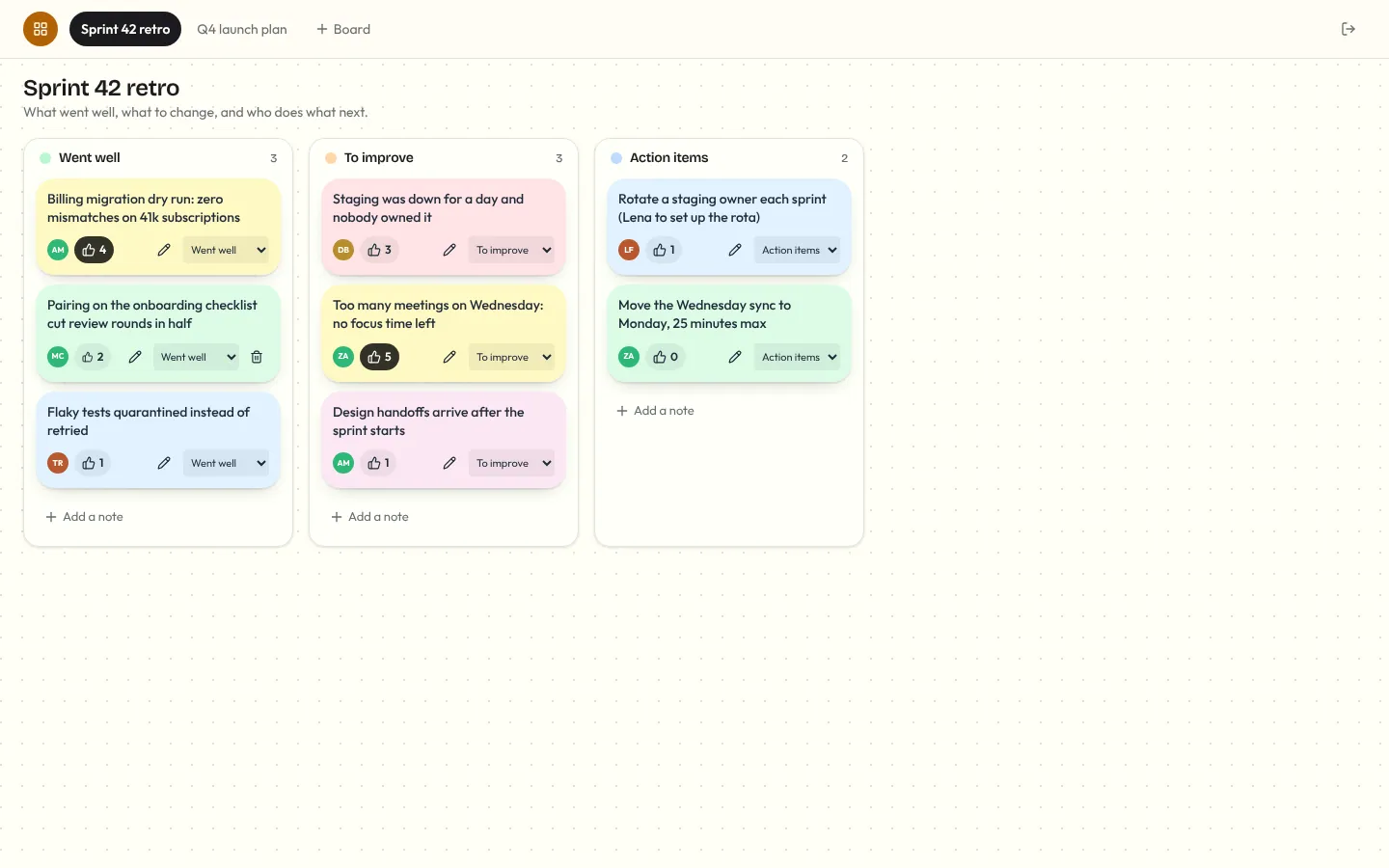
Corkboard
Multiplayer sticky-note board for retros and planning: notes you add, edit, drag between lanes and vote on, live for everyone, with who's on the board and who's editing which note.